Whether you have your bank statements ready or just know your monthly take-home pay, our tool guides you to accurate results in minutes. Follow this complete walkthrough to generate your 2025 tax report today.
Step 1: Launch the Analyzer from Your Dashboard
Once you register and verify your email, log in to your ZnytriQ account. You will land on your personal dashboard.
Check your Available Credits on the left side of the screen. You need at least one credit to run an analysis. If you need more, you can easily reach out to our team via the provided WhatsApp number. When you are ready, click the large Launch Tax Analyzer button to begin.
Step 2: Choose Your Input Method
The system gives you two flexible ways to provide your financial data:
- Upload Bank Statement: Upload your PDF statement directly from your bank. The AI will automatically read it and infer your current monthly net pay.
- Manual Entry Only: If you do not have a statement handy, select this option to simply type your monthly take-home pay into the box.
Step 3: Define Your Income Profile
Next, tell the tool how you earn your money. Select one of three categories: Salaried (regular employee), Freelancer (creative or self-employed), or Mixed (a combination of both).
After selecting your income type, choose your industry from the dropdown menu. This step is crucial for estimating your BHT (Basic, Housing, and Transport) allowance.
Why Does BHT Matter?
The government does not tax your entire salary equally. Your BHT portion often dictates your tax brackets. Different industries allocate different percentages to BHT. For example, General Corporate roles hover around 40 percent, IT roles might be 50 percent, and Government sectors can reach 75 percent. Our tool auto-fills the standard rate for your industry, but you can override this percentage manually if you know your exact numbers.
Step 4: Add Payslips and Statutory Deductions
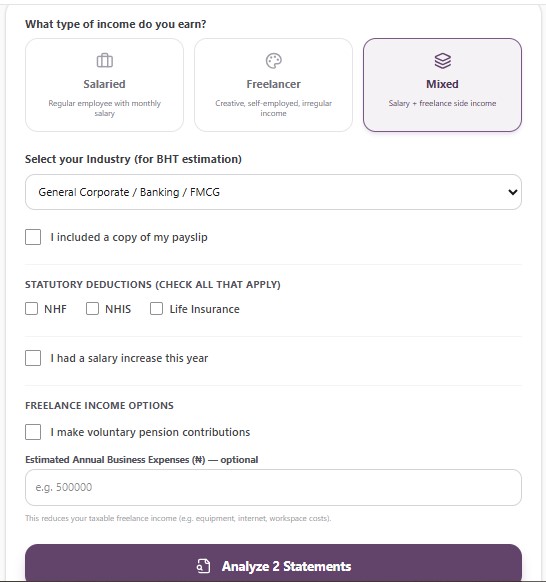
Want perfect accuracy? Check the box labeled “I included a copy of my payslip.” If you upload your payslip alongside your bank statement, our AI reads your exact BHT breakdown automatically.
Below this, you will see checkboxes for Statutory Deductions. Simply check the boxes if you pay into NHF, NHIS, or Life Insurance. The system handles the math.
Step 5: Account for Salary Increases and Loans
Did you get a raise mid-year? We have you covered. Check the “I had a salary increase this year” box. Select the exact month your new pay started, and type in your previous monthly salary. The system will blend the two rates to give you a perfect annualized projection.
Scroll down to the Active Loans section to add any car loans or mortgages. Enter the principal amount, interest rate, and dates. You can add as many loans as you need, provided they were active during the 2025 financial year.
Step 6: Analyze and Generate Your Report
Review your inputs and click the bold Analyze My Income (or Analyze 1 Statement) button. In seconds, the system redirects you to your final results page.
Understanding Your Results
The final dashboard provides exactly what you need to report to the government:
- Estimated Income: Your true Gross Income for the year.
- Estimated Take-Home After Tax: Your actual net profit.
- Tax Paid: The exact figure you owe or have already paid to the government.
Ready to Master Your Taxes?
Grab your bank statement or your latest payslip and let the AI do the heavy lifting.